
TurboGet
by Shahrukh Sheikh
Free · Windows 10 & 11 · Version 0.2.2
Downloads that use your whole connection, not one slow lane of it.
TurboGet splits every file into up to 32 parts and downloads them at the same time. It picks up exactly where it stopped after a crash, a dropped Wi-Fi or a reboot, and puts a Download button on the videos you watch in your browser.
Free · No account · No ads · No telemetry · 150 MB installer
Measured, not claimed
TurboGet in numbers
12×
Faster on capped servers
A 100 MB file from a server that limits each connection to 4 MB/s: 25.4 s on one connection, 2.0 s on sixteen.
32
Connections per file
8 by default. Parts that finish early take over half of the slowest remaining part.
1000+
Video sites
YouTube, Instagram, Facebook, X, Vimeo and more, plus any page that streams HLS or DASH.
0
Bytes sent to us
No servers of ours are involved. Your downloads, history and cookies stay on your PC.
The TurboGet main window
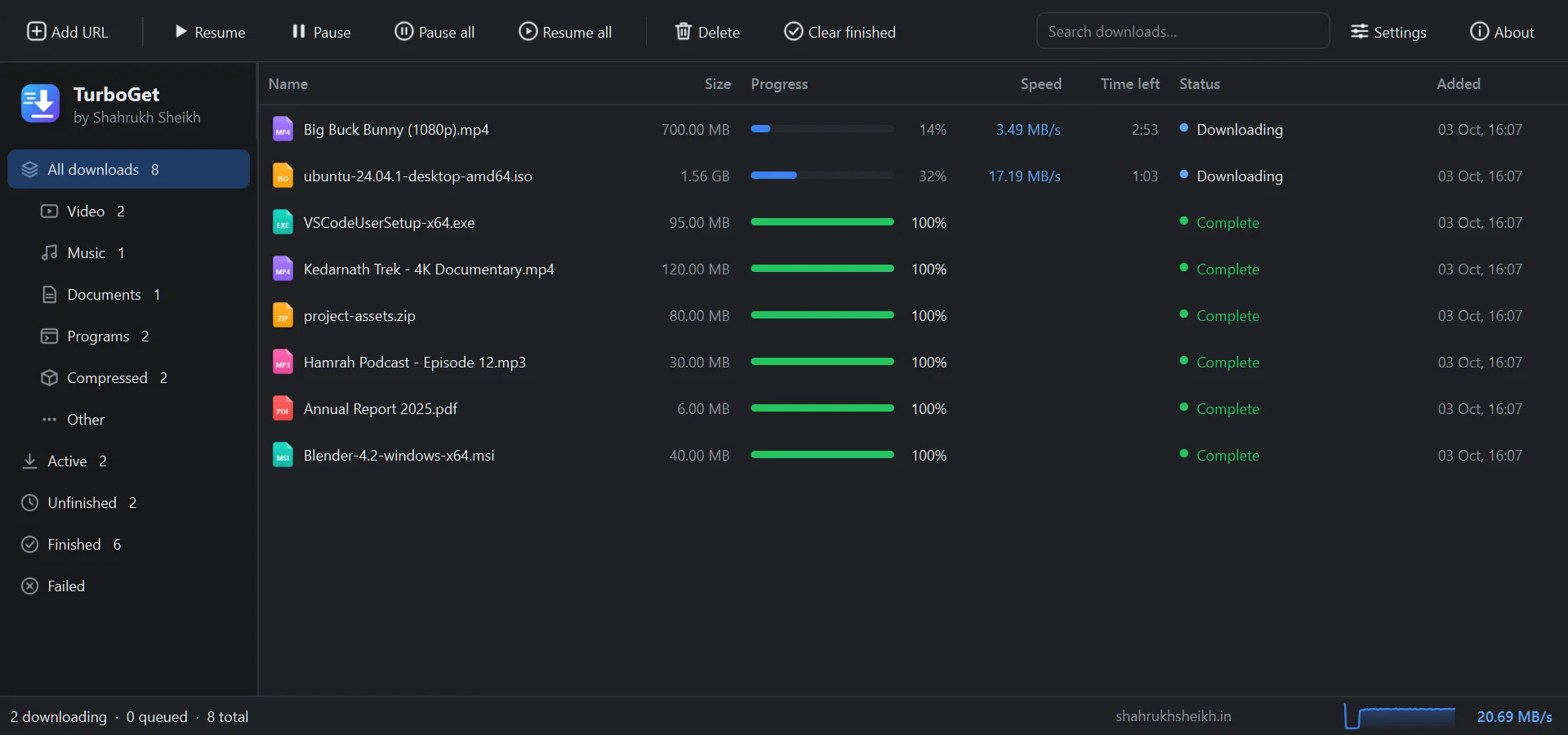
The main window: everything you have downloaded, sorted into Video, Music, Documents, Programs and Compressed.
Features
Everything you expect from a download manager, and a few things you don't.
Speed engine
- 1 to 32 connections per file, each downloading its own byte range.
- Dynamic splitting: a connection that finishes early takes half of the largest part still left, so no connection sits idle at the end.
- Parts are written straight into one pre-allocated file. There is no slow "merging" step at the end.
- Servers that refuse parallel downloads fall back to a single connection automatically.
- Backs off by itself when a server says it is busy (HTTP 429 or 503).
Never start over
- Pause and resume any download that the server allows to resume.
- Survives a crash, a closed app or a Windows restart: progress of every part is saved every 1.5 seconds.
- Dropped Wi-Fi or cable: each connection retries on its own, without losing what it already received.
- If the file changed on the server, it restarts cleanly instead of saving a broken mix.
- Keeps your PC from going to sleep while downloads are running.
Video downloads
- A Download with TurboGet button appears on videos as you watch them.
- Choose the quality before downloading: 4K, 1080p, 720p, audio only.
- YouTube, Instagram, Facebook, X, Vimeo and 1000+ other sites.
- HLS (
.m3u8) and DASH (.mpd) streams, including AES-128 encrypted HLS, joined into one MP4. - Save audio as MP3 or the original M4A.
- Uses H.264 up to 1080p so videos play everywhere.
Browser integration
- Chrome, Edge, Brave, Opera, Vivaldi, Yandex, Arc and Firefox, LibreWolf, Waterfox, Floorp, Zen.
- Takes over downloads of the file types you choose (zip, exe, iso, pdf, mp4…) above a size you set.
- "Let the browser handle the next download" for the one file you don't want TurboGet to catch.
- Right-click any link, image or video: Download with TurboGet.
- The toolbar popup lists every video and file detected on the current page.
- Downloads that need your login keep working, because the site's cookies are passed along.
You stay in control
- Queue with a limit on how many downloads run at once.
- Speed limiter for everything, or for a single download.
- Scheduler: start and pause the queue at set times on chosen days.
- When the queue finishes: do nothing, sleep or shut down the PC.
- Proxy support: system proxy, HTTP or SOCKS5.
- Copy a download link and TurboGet offers to download it.
See what's happening
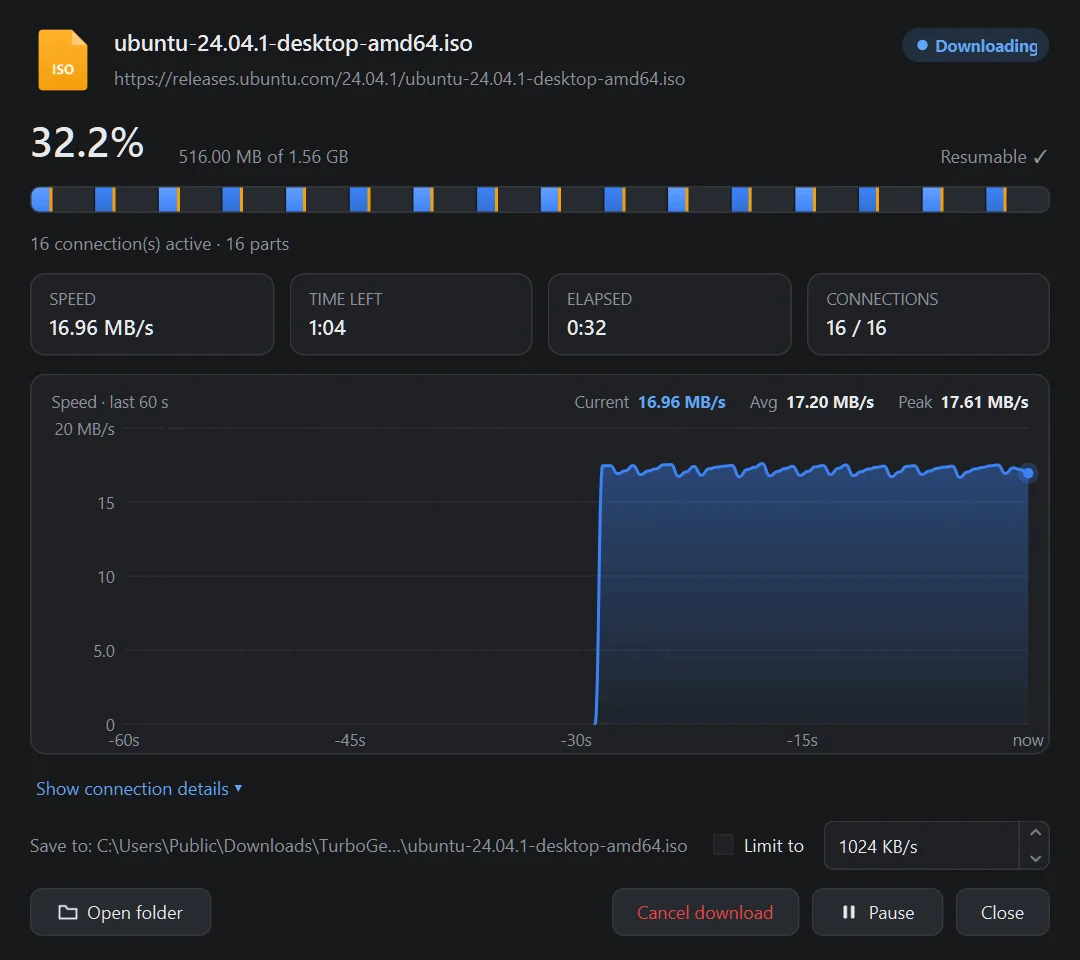
- A live speed graph for every download, with current, average and peak speed.
- A chunk map that shows each connection's part filling up.
- Per-connection details: range, bytes received, state.
- Files sorted into folders by type automatically, with search.
- Dark and light theme, tray icon, notifications and taskbar progress.
How it works
Install once. After that, you just browse.
-
Install TurboGet
Run the installer. No admin password is needed. It connects itself to every supported browser on your PC.
-
Add the extension
One-time step per browser, about a minute. The browser extension guide shows each browser.
-
Download as usual
Click a download link or play a video and press Download with TurboGet. Pick a quality and a folder.
-
TurboGet does the rest
It opens parallel connections, saves progress as it goes and tells you when the file is ready.
Before it starts
Pick the quality first, not after a 2 GB download.
When you click the button on a video, TurboGet looks at every stream the page offers and lists them: each HLS quality, direct MP4 files, and what the site itself offers through its extractor. Name the file, choose the folder and the number of connections, then start or queue it for later.
Pages that play DRM-protected video (Netflix, Prime Video, Hotstar, Spotify) are shown as Protected. TurboGet does not try to get around that.
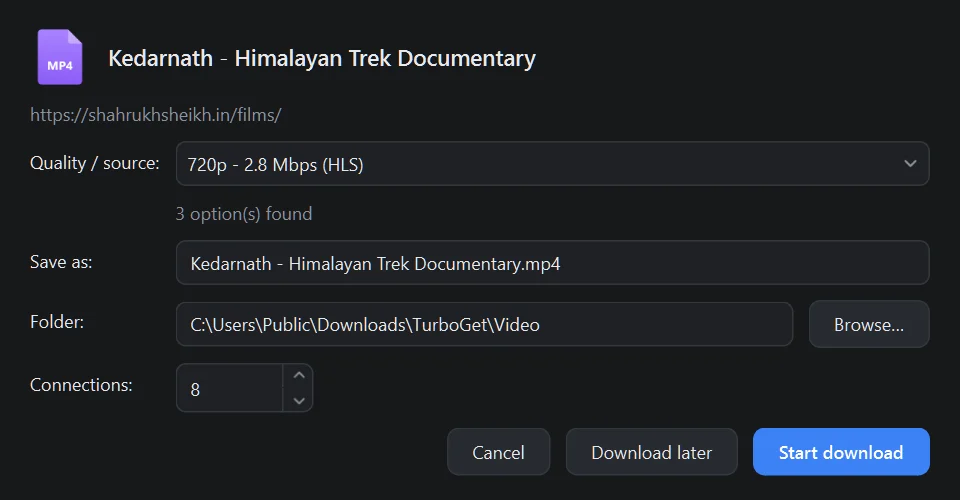
The dialog that opens when you click Download on a video.
Browser support
Works with the browser you already use.
Chromium-based browsers
One extension for all of them. Added once from the TurboGet folder in Developer mode.
Firefox-based browsers
A Mozilla-signed add-on, installed with one click and kept after restarts.
Compared
What your browser's own downloader can't do.
| Capability | TurboGet | Built-in browser downloads |
|---|---|---|
| Connections per file | Up to 32 | 1 |
| Resume after an app crash or Windows restart | Yes | Often restarts from zero |
| Download button on videos | Yes, with quality choice | No |
| HLS / DASH streams joined into one file | Yes | No |
| YouTube, Instagram, Facebook, X… | Yes | No |
| Queue, speed limit, scheduler | Yes | No |
| Sleep or shut down when finished | Yes | No |
| Price | Free | Free |
System requirements
What you need.
| Windows | Windows 10 or 11, 64-bit |
| Disk space | About 520 MB for the app, plus space for your downloads |
| Memory | 4 GB RAM or more recommended |
| Admin rights | Not needed. Installs for your Windows user only. |
| Included | Everything it needs: Python runtime, ffmpeg, yt-dlp and a JavaScript runtime. Nothing else to install. |
| Browser | Any browser listed above, for the browser features |
Being honest
What it doesn't do.
- No DRM. Netflix, Prime Video, Hotstar, Spotify and similar protected streams are marked Protected and never downloaded.
- Windows only for now. No macOS, Linux or mobile version.
- Live streams save only the part that is available when you click. TurboGet does not record a live broadcast as it continues.
- The installer is not code-signed yet, so Windows SmartScreen asks you to confirm the first time.
- The Chrome-family extension is added in Developer mode, because it is not on the Chrome Web Store yet.
FAQ
Questions people ask first.
Is TurboGet really free?
Yes. There is no trial, no account, no ads and no paid version. I built it because I needed it and didn't want to pay for a licence or install a cracked copy of something else.
Windows says "Windows protected your PC". Is it safe?
That message appears for any installer that isn't signed with a paid code-signing certificate yet, which TurboGet isn't. Click More info, then Run anyway.
To be sure your copy is the original, compare its SHA-256 checksum with the one in the download section. In PowerShell: Get-FileHash .\TurboGet-Setup-0.2.2.exe.
Why does Chrome need "Developer mode" for the extension?
The extension isn't published on the Chrome Web Store yet, and Chrome only installs extensions from outside the store in Developer mode. The extension is included inside the TurboGet folder. Firefox is different: its add-on is signed by Mozilla and installs normally.
Can it download from Netflix, Prime Video, Hotstar or Spotify?
No. Those services use DRM encryption. TurboGet detects it, shows the page as Protected and does nothing more. This is by design and will not change.
Why are YouTube downloads faster in TurboGet than with other tools?
YouTube slows down long single requests. TurboGet asks for the video in 10 MB pieces over several connections at once, which YouTube serves at full speed. In testing, a 1440p video went from about 200 KB/s to 3–4 MB/s on the same connection.
Does TurboGet send my data anywhere?
No. There is no analytics, telemetry or crash reporting, and no server of mine is involved. The browser extension passes the link, page address and that site's cookies only to the TurboGet app on the same PC. Details are in the privacy policy.
Where are my files saved?
In Downloads\TurboGet, sorted into Video, Music, Documents, Programs and Compressed. You can change the folder, or turn the sorting off, in Settings → General.
How do I update or uninstall it?
To update, download the new installer and run it over the old version. Your settings and history are kept. To uninstall, use Windows Settings → Apps. The uninstaller asks whether to delete your settings and history too, and never touches your downloaded files.
Is downloading videos legal?
It depends on the video and where you live. Download only what you own, what is freely licensed, or what the site and copyright holder allow. You are responsible for how you use TurboGet. See the terms of use.
Changelog
What changed, version by version.
0.2.2 October 2026 · current
- YouTube and other site downloads now use TurboGet's own multi-connection engine: about 15–20× faster than before.
- Downloads that stall now stop with a clear message instead of staying at 0% forever.
- Automatic retry without browser cookies when a site refuses the logged-in link.
- Prefers H.264 up to 1080p for wider player support, and avoids slow stream formats.
0.2.1 October 2026
- Browser bridge registered for Opera, Opera GX, Vivaldi, Yandex, Thorium, LibreWolf and Waterfox.
- Browser setup guide added to the Start menu.
0.2.0 October 2026
- First public release as TurboGet: Windows installer, live speed graph, chunk map, new design and dark/light themes.
- Firefox add-on, signed by Mozilla.
Download TurboGet
The installer includes the app, the browser extensions and everything they need.
SHA-256 (TurboGet-Setup-0.2.2.exe): 207538705424797b3cf76204cc89b4b2c3dded3d63b4619294b02eec67399df9
The installer is hosted on Google Drive. Because the file is large, Drive shows a "can't scan for viruses" notice; click Download anyway. By downloading you agree to the terms of use and the privacy policy.
Want the build story: why HTTP/2 would have killed the speed, how the browser talks to the app, and how YouTube's throttling was beaten?
Read the case study